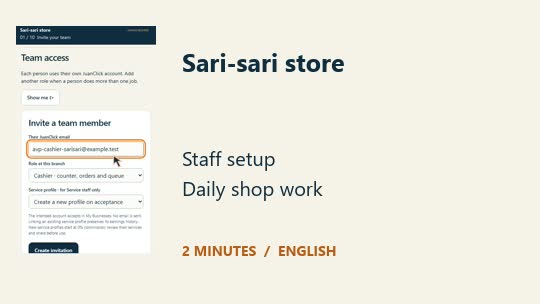
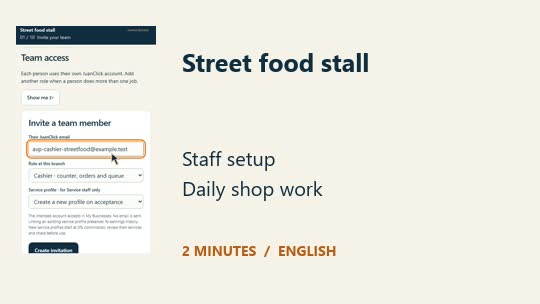
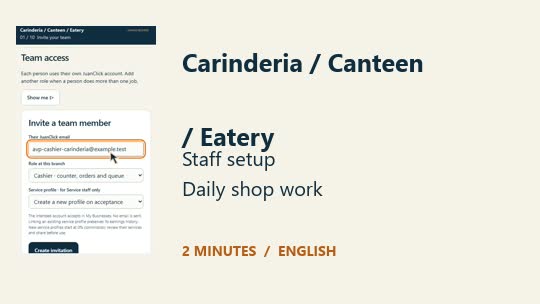
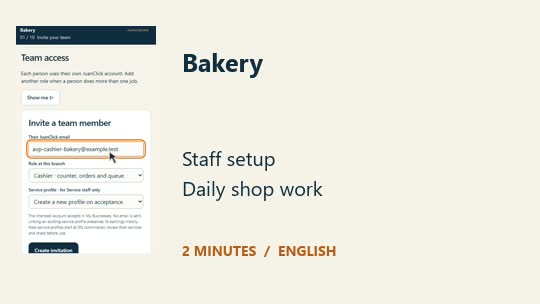
Choose your shop type to learn staff setup and daily work.
Sample records. Videos start only when you press Play.
Before you start
In My Businesses, owners choose or create the business and branch. Staff accept their branch invitation using their own account.
For customer reservations and check-ins, the owner also needs to:
In Shop settings, select Open my shop online, then Save shop settings.
In Visits & reservations, open Branch visit hours, capacity & rules. Choose the workflow, hours and capacity, enable Accept customer check-ins and reservation requests, then select Save visit rules.
Counter sales can work privately without customer Visits.
Coffee shop
English narration & captions · Sample records
Read transcript
0:00 Invite your team
Start in My Businesses and open the correct branch. Choose Team access. Enter the person's own JuanClick email, choose a role, then select Create invitation. Never share the owner's sign-in.
0:12 Choose roles and accept
Invite baristas, cooks and servers as Service staff for duty and rosters. Give Cashier only to those trusted with orders and payments. Everyone accepts in My Businesses.
0:24 Start your working day
Time in through My duty. Login does not record attendance. Cashiers open their own shift with counted opening cash before taking payments.
0:33 Review the coffee menu
The owner reviews drink names, cup sizes, snack prices and availability before opening sales. Starter items are examples. Make an Americano or pastry match what this branch actually sells.
0:45 Prepare the seating plan
For seated customers, the owner enables Visits and sets opening hours. In Services and schedules, define each real table and its seats before staff begin assigning parties to tables.
0:58 Welcome and seat a party
Cashiers review reservation requests, confirm a suitable table and record arrival. Call the waiting party, then start their visit when seated. A request needs confirmation before its time is reserved.
1:11 Record drinks and food
At Counter, choose the drinks and snacks, check quantities and record the customer's payment. Give the barista or cook the preparation details directly; there is no separate kitchen order screen.
1:24 Handle online orders
Open Orders and reload to check new requests. Accept an order, prepare it, mark it ready, then record payment and complete it. Verify any electronic payment before recording it.
1:36 Free the table
Finish the seating visit when the party leaves so the table becomes available. Table visits and food bills are separate records. A server needs cashier or manager access to operate these screens.
1:49 Count, close and hand over
Record cash movements with reasons. Count and close your shift, explaining differences. Finish work, then time out. The next cashier signs in separately.
Start in My Businesses and open the correct branch. Choose Team access. Enter the person's own JuanClick email, choose a role, then select Create invitation. Never share the owner's sign-in.
0:12 Choose roles and accept
Invite barbers as Service staff and counter staff as Cashier. Each person opens My Businesses in their own account and selects Accept invitation. Invitations are not emailed.
0:23 Start your working day
Time in through My duty. Login does not record attendance. Cashiers open their own shift with counted opening cash before taking payments.
0:33 Prepare barber profiles
The owner reviews haircut prices. Give each barber the Service staff role and link the correct profile. Linking an existing profile preserves earnings history. New profiles start with zero commission.
0:46 Set services and schedules
In Visits, select Service appointments, set hours and capacity, enable check-ins and save. Review barbers' categories and commission. Set service durations and optional rosters in Services and schedules.
1:00 Become available
After timing in, the barber chooses Available for a customer. Being signed in or simply working is not enough for assignment. Finish the current customer before taking a break.
1:12 Confirm and call the visit
The cashier approves a reservation with an eligible barber or adds a guest walk-in. Record arrival, then call the next eligible ticket. Customers can follow their visit status in JuanClick.
1:24 Start and finish the haircut
The assigned barber starts their own visit when ready and finishes it after the haircut. Service staff can see their own assignments; they cannot collect payment without an additional cashier role.
1:37 Collect the linked payment
The cashier opens the finished visit's payment link, checks the service and barber, and records payment. The completed sale records the service share. Each barber can review their own recorded earnings.
1:49 Count, close and hand over
Record cash movements with reasons. Count and close your shift, explaining differences. Finish work, then time out. The next cashier signs in separately.
Start in My Businesses and open the correct branch. Choose Team access. Enter the person's own JuanClick email, choose a role, then select Create invitation. Never share the owner's sign-in.
0:12 Choose roles and accept
Invite stylists and beauty technicians as Service staff, and payment staff as Cashier. Each person selects Accept invitation in My Businesses using their own account. Invitations are not emailed.
0:24 Start your working day
Time in through My duty. Login does not record attendance. Cashiers open their own shift with counted opening cash before taking payments.
0:33 Prepare the salon team
The owner reviews hair, nail and beauty services, then invites each stylist or technician as Service staff. Link an existing profile when available, preserving its recorded service and earnings history.
0:46 Match skills and duration
In Visits, select Service appointments, set hours and capacity, enable check-ins and save. Review stylists' categories and commission. Set treatment durations and optional rosters in Services and schedules.
1:00 Make yourself available
Each stylist times in at the correct branch and chooses Available for a customer. Check your own roster before the day begins. Breaks and time out wait until active service finishes.
1:12 Plan the customer's visit
The cashier confirms a requested service with an eligible person, then checks the customer in on arrival. Use the visit queue for walk-ins too, keeping each person's assigned work clear.
1:24 Perform the assigned service
Call the customer, start the assigned visit and finish it when the treatment ends. Stylists and technicians see their own assignments. A Service staff account alone cannot manage general shop orders.
1:37 Record the correct payment
The cashier follows the finished visit to payment and checks the billed service and assigned worker. Complete payment once received. Staff can review their own shares; payout records are not bank transfers.
1:50 Count, close and hand over
Record cash movements with reasons. Count and close your shift, explaining differences. Finish work, then time out. The next cashier signs in separately.
Start in My Businesses and open the correct branch. Choose Team access. Enter the person's own JuanClick email, choose a role, then select Create invitation. Never share the owner's sign-in.
0:12 Choose roles and accept
Invite stock helpers as Service staff for duty and rosters. Cashiers handle counter sales, orders and payments. Each person selects Accept invitation in My Businesses with their own account.
0:24 Start your working day
Time in through My duty. Login does not record attendance. Cashiers open their own shift with counted opening cash before taking payments.
0:34 Review products and units
The owner reviews each item's name, selling unit and price. A one-kilogram rice pack is one pack, while six eggs form one pack. Confirm these units before recording customer quantities.
0:46 Keep stock useful
The owner can enable stock tracking for suitable products and maintain quantities. Cashiers report shortages or damaged goods to the owner. Product stock does not replace a purchasing or supplier ledger.
0:58 Build the customer's basket
Open Counter, choose the customer's products and set whole-number quantities. Review the basket and total before payment. For loose goods, use clearly priced packs; there is no decimal weighing checkout.
1:12 Record the payment
Select the actual payment method and enter the required details. For cash, enter the amount received and check the change. Verify electronic payment yourself before recording the sale as paid.
1:24 Prepare requested orders
Reload Orders to find new requests. Accept available items, prepare the order and mark it ready. Confirm collection or delivery arrangements directly, then record payment and complete the order.
1:37 Manage a busy counter
The owner selects Counter visits in Visits, sets hours, enables check-ins and saves. Cashiers add guests, call, start and finish visits. Tickets do not record sales or payments.
1:49 Count, close and hand over
Record cash movements with reasons. Count and close your shift, explaining differences. Finish work, then time out. The next cashier signs in separately.
Start in My Businesses and open the correct branch. Choose Team access. Enter the person's own JuanClick email, choose a role, then select Create invitation. Never share the owner's sign-in.
0:12 Choose roles and accept
Invite shop helpers as Service staff for duty and rosters. Choose Cashier for people who handle orders and money. Each person accepts in My Businesses using their own account.
0:24 Start your working day
Time in through My duty. Login does not record attendance. Cashiers open their own shift with counted opening cash before taking payments.
0:34 Set tingi prices
The owner reviews the exact selling unit and price for each item. Coffee may be one sachet, crackers one pack and soap one bar. Starter prices need checking before sales begin.
0:45 Prepare the day's stock
Track stock where useful and have the owner update available quantities. Tell the owner when an item runs out. Keep personal purchases separate from the drawer and record legitimate cash movements.
0:58 Add a small basket
At Counter, tap the customer's items and enter the number of sachets, packs or pieces. Check the total together. Quantities are whole units, so name and price each selling unit clearly.
1:10 Take payment accurately
Record the payment method actually received. For cash, enter the tendered amount and check change. JuanClick does not provide an utang ledger here, so do not record unpaid credit as paid.
1:23 Handle neighborhood requests
Check Orders and reload for new requests. Accept what you can supply, mark the prepared order ready, then record payment and complete it. Agree pickup or delivery arrangements directly with the customer.
1:37 Use the queue when needed
The owner selects Counter visits in Visits, sets hours, enables check-ins and saves. Cashiers add guests, call, start and finish each visit. Customer orders and payments stay separate.
1:49 Count, close and hand over
Record cash movements with reasons. Count and close your shift, explaining differences. Finish work, then time out. The next cashier signs in separately.
Start in My Businesses and open the correct branch. Choose Team access. Enter the person's own JuanClick email, choose a role, then select Create invitation. Never share the owner's sign-in.
0:12 Choose roles and accept
Invite cooks and food preparation staff as Service staff for duty and rosters. Cashiers handle orders and payments. Everyone selects Accept invitation in My Businesses using their own account.
0:24 Start your working day
Time in through My duty. Login does not record attendance. Cashiers open their own shift with counted opening cash before taking payments.
0:33 Review servings and prices
The owner checks the menu before sales begin. Fish balls are sold by cup, barbecue by stick and kwek-kwek by serving. Make the listed portions match what the stall actually provides.
0:45 Separate access from job titles
Cooks can use their own accounts for duty, but there is no kitchen-only order role. Cashier or manager access includes orders and payments. Share preparation instructions directly with the cooking team.
0:58 Record the customer's order
At Counter, choose the snacks, grilled items and drinks, then check quantities. Repeat the order to the customer and pass preparation details to the cook. A paid sale has no cooking-stage tracker.
1:11 Take and verify payment
Enter the payment actually received, including cash tender and change when needed. Check electronic payment directly before recording it. Give the customer the order reference so staff can identify the purchase.
1:25 Prepare online requests
Reload Orders to find requests. Accept an available order, prepare it, then select Ready for collection or service. Record payment and complete it when paid; use a reason when declining.
1:37 Keep the waiting line clear
The owner selects Counter visits in Visits, sets hours, enables check-ins and saves. Cashiers add guests, call, start and finish tickets. Keep tickets separate from food orders and payments.
1:50 Count, close and hand over
Record cash movements with reasons. Count and close your shift, explaining differences. Finish work, then time out. The next cashier signs in separately.
Start in My Businesses and open the correct branch. Choose Team access. Enter the person's own JuanClick email, choose a role, then select Create invitation. Never share the owner's sign-in.
0:12 Choose roles and accept
Invite cooks and servers as Service staff for duty and rosters. Cashier access also allows orders and payments, so grant it carefully. Everyone accepts in My Businesses using their own account.
0:24 Start your working day
Time in through My duty. Login does not record attendance. Cashiers open their own shift with counted opening cash before taking payments.
0:33 Review today's food
The owner reviews rice, ulam, meals and drink prices, using the actual serving units. Mark unavailable products accordingly. Starter items are examples; the menu should reflect what the kitchen can serve today.
0:46 Set up real tables
Enable Seating in Visits and set opening hours. The owner defines table names and seat counts in Services and schedules. Staff can then choose a suitable available table for each party.
0:58 Welcome the party
Review reservation requests, confirm a table and record arrival. Call the waiting party and start the seating visit. Servers need cashier or manager access to operate this queue; there is no server-only role.
1:11 Take the meal order
At Counter, select meals, extra rice and drinks, then check quantities and payment. Pass preparation instructions to the kitchen directly. A cook's Service staff account does not open ordinary food orders.
1:24 Handle takeaway requests
Reload Orders for new requests, accept available food and mark prepared orders ready. Confirm collection or delivery details directly. Record payment and complete the order once the payment has been received.
1:37 Close the seating visit
Finish the visit when the party leaves, making the table available again. Seating records and food bills are separate. There is no automatic table-bill merging or kitchen production board in this workflow.
1:50 Count, close and hand over
Record cash movements with reasons. Count and close your shift, explaining differences. Finish work, then time out. The next cashier signs in separately.
Start in My Businesses and open the correct branch. Choose Team access. Enter the person's own JuanClick email, choose a role, then select Create invitation. Never share the owner's sign-in.
0:11 Choose roles and accept
Invite bakers and preparation staff as Service staff for duty and rosters. Choose Cashier for people handling sales and payments. Everyone accepts their invitation in My Businesses using their own account.
0:24 Start your working day
Time in through My duty. Login does not record attendance. Cashiers open their own shift with counted opening cash before taking payments.
0:33 Check bakery selling units
The owner reviews bread and pastry prices before opening sales. Pandesal may be a six-piece pack, egg pie a slice and banana loaf a whole loaf. Make those units clear to staff.
0:44 Prepare availability
The owner maintains product availability and optional stock counts for today's goods. Bakers can use duty accounts, but there is no production-only order screen. Cashiers communicate baking or preparation needs directly.
0:58 Build the bread basket
At Counter, choose the bread or pastries and enter whole-number quantities. Check whether the customer wants a pack, piece, slice or loaf before payment, avoiding accidental overcharging for the wrong unit.
1:10 Record the sale
Choose the payment actually received, enter cash tender when appropriate and check change. Verify electronic payment directly before recording it. Completed sales can reduce tracked stock when that product uses stock tracking.
1:25 Prepare reserved orders
Reload Orders for new requests. Accept what the bakery can supply, prepare it, mark it ready, then record payment and complete it. Agree collection or delivery details directly with the customer.
1:37 Manage limits clearly
The owner selects Counter visits in Visits, sets hours, enables check-ins and saves. Cashiers manage waiting tickets separately from sales. Custom cakes, deposits and baking stages still need separate arrangements.
1:50 Count, close and hand over
Record cash movements with reasons. Count and close your shift, explaining differences. Finish work, then time out. The next cashier signs in separately.
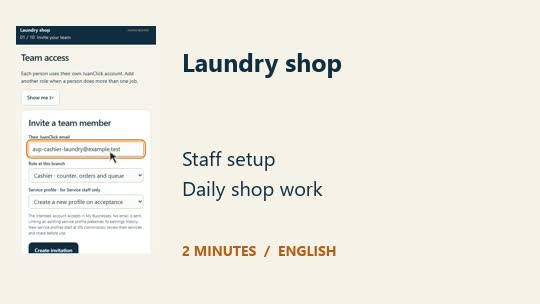
Start in My Businesses and open the correct branch. Choose Team access. Enter the person's own JuanClick email, choose a role, then select Create invitation. Never share the owner's sign-in.
0:11 Choose roles and accept
Invite laundry workers as Service staff for duty and rosters. Cashiers handle service orders and payments. Each person selects Accept invitation in My Businesses using their own account.
0:23 Start your working day
Time in through My duty. Login does not record attendance. Cashiers open their own shift with counted opening cash before taking payments.
0:32 Review the laundry menu
The owner sets service prices and units before opening sales. Starter wash, dry and fold options are priced per load, up to eight kilograms; bedding and ironing may be priced per piece.
0:44 Give staff suitable access
The cashier handles orders and payments. Laundry workers may use their own duty accounts, but Service staff access does not include ordinary laundry orders. Communicate collection details and processing instructions directly.
0:58 Receive the customer's laundry
Check the actual laundry and agree the service and price. Select the correct number of loads or pieces at Counter. Fractional kilogram weighing is not supported by this whole-unit checkout.
1:10 Record payment and reference
Record the payment received and give the customer the order reference. Keep a clear physical identification process for their laundry. JuanClick does not track individual garments, machine cycles or wash stages.
1:23 Work through requested orders
Reload Orders to see requests. Accept the agreed service, then mark the order ready when appropriate. Record payment and complete it once paid. The laundry template uses Visit, rather than delivery options.
1:36 Arrange collection clearly
The owner selects Counter visits in Visits, sets hours, enables check-ins and saves. Cashiers manage arrivals separately from laundry orders. Agree collection directly; do not promise automatic collection messages.
1:50 Count, close and hand over
Record cash movements with reasons. Count and close your shift, explaining differences. Finish work, then time out. The next cashier signs in separately.
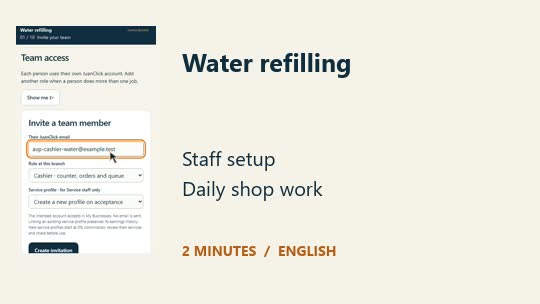
Start in My Businesses and open the correct branch. Choose Team access. Enter the person's own JuanClick email, choose a role, then select Create invitation. Never share the owner's sign-in.
0:11 Choose roles and accept
Invite refilling workers as Service staff for duty and rosters. Cashiers handle customer orders and payments. Each person selects Accept invitation in My Businesses using their own account.
0:23 Start your working day
Time in through My duty. Login does not record attendance. Cashiers open their own shift with counted opening cash before taking payments.
0:32 Review refills and containers
The owner checks refill sizes, container products and prices. A five-gallon refill is one container service; a new container is a separate product. Make the distinction clear before staff begin selling.
0:45 Prepare team and availability
Cashiers handle orders and payments; refilling staff can record their own duty. There is no production-only order role. Keep operating instructions and water-quality procedures in your established shop process.
0:58 Build the refill order
At Counter, select the correct water type and container size, then enter the number of refills. Add a new container or accessory only when sold. Review the total with the customer.
1:09 Collect the payment
Record the method and amount received. Check cash tender and change, or verify electronic payment directly. Share the order reference and refill instructions with the worker using your normal handoff process.
1:23 Prepare delivery requests
Reload Orders for new requests. Accept available orders, prepare the refills and mark them ready. Agree delivery details directly, then record payment and complete the order. There is no driver dispatch board.
1:36 Keep container records clear
The owner selects Counter visits in Visits, sets hours, enables check-ins and saves. Cashiers manage waiting tickets separately from orders. Container deposits, loans, returns and balances remain separate.
1:50 Count, close and hand over
Record cash movements with reasons. Count and close your shift, explaining differences. Finish work, then time out. The next cashier signs in separately.